> ## Documentation Index
> Fetch the complete documentation index at: https://docs.dbpilot.io/llms.txt
> Use this file to discover all available pages before exploring further.
# Edit Data
## Insert
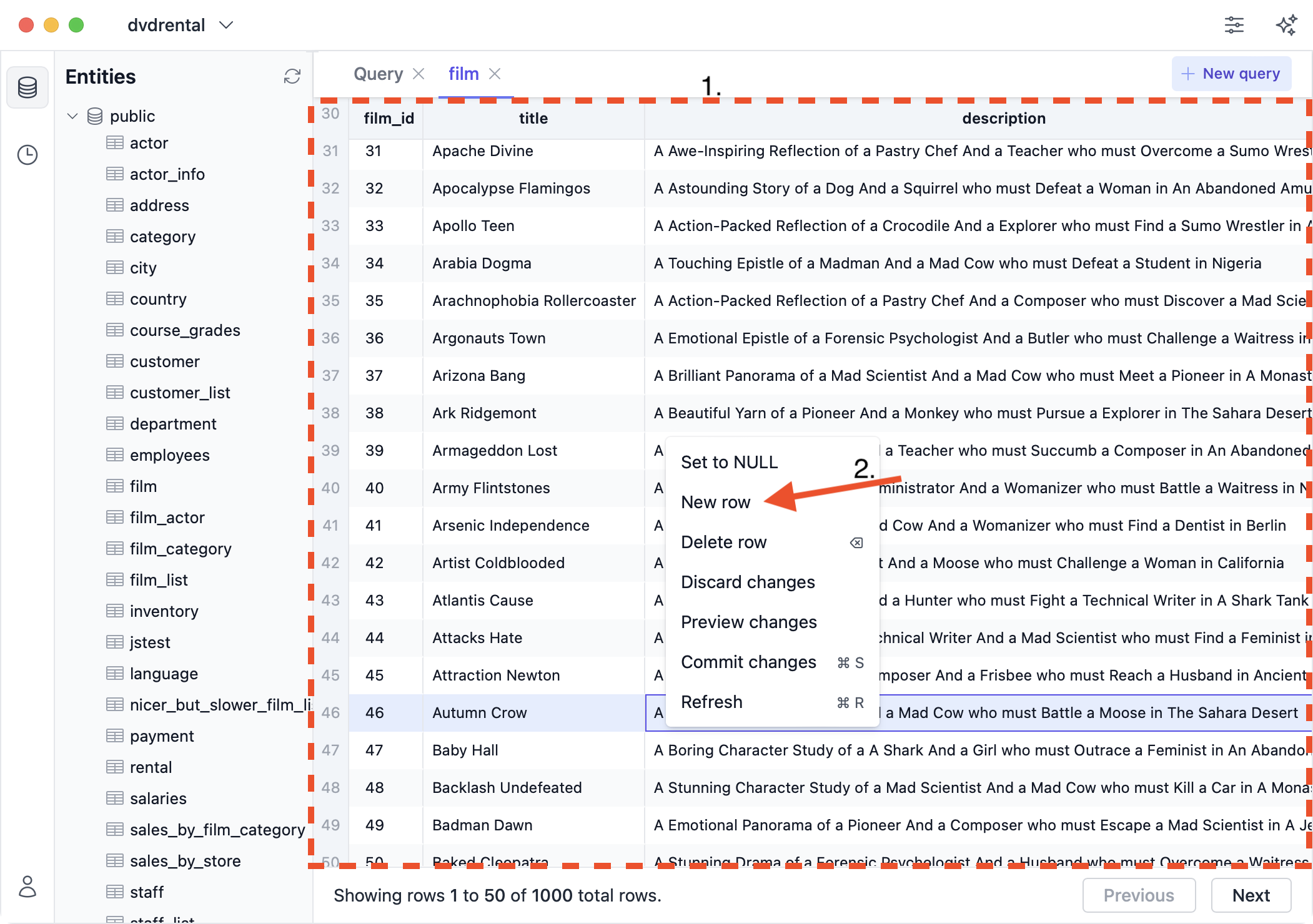
To insert a new row:
1. Right-click anywhere in the table view
2. Click the "New row" button
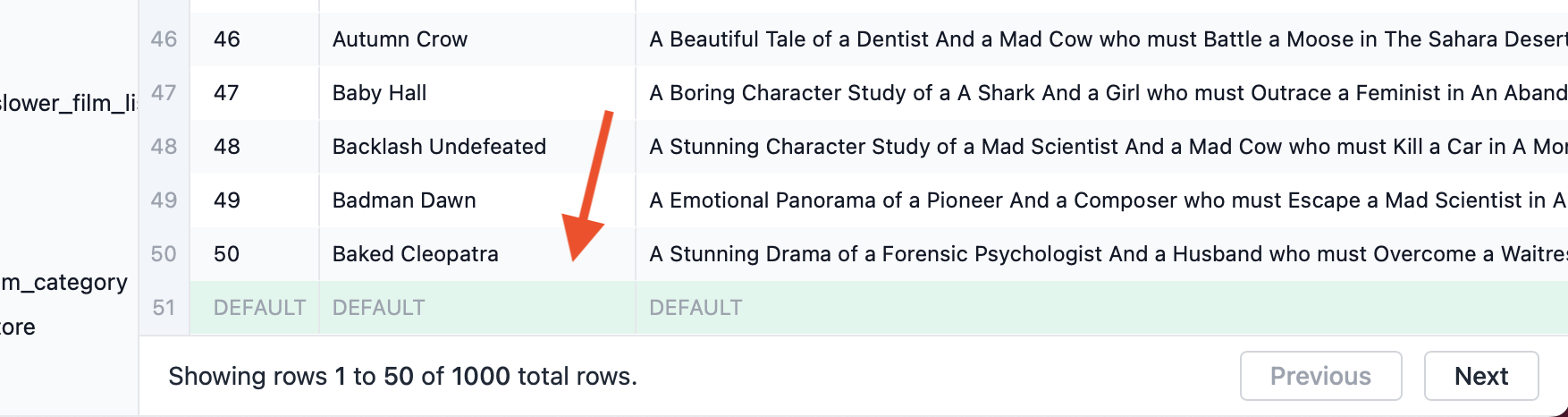
 A new row then appears at the bottom. Double-click a column to enter value for it,
or leave it blank to use the column's default value. The new row will be highlighted in green while it is not committed.
A new row then appears at the bottom. Double-click a column to enter value for it,
or leave it blank to use the column's default value. The new row will be highlighted in green while it is not committed.
 ## Update
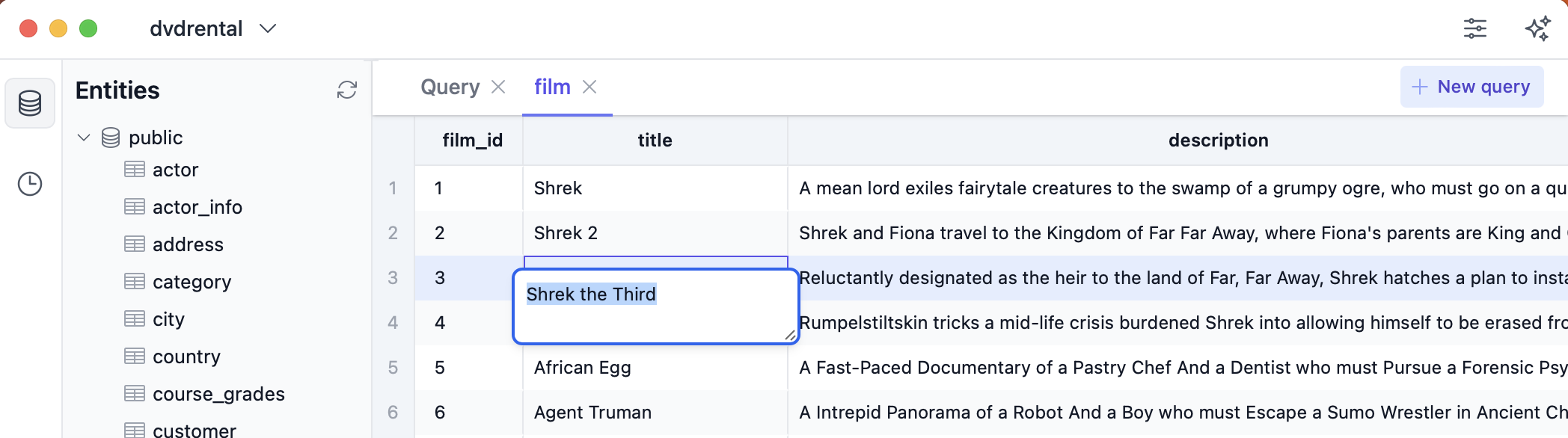
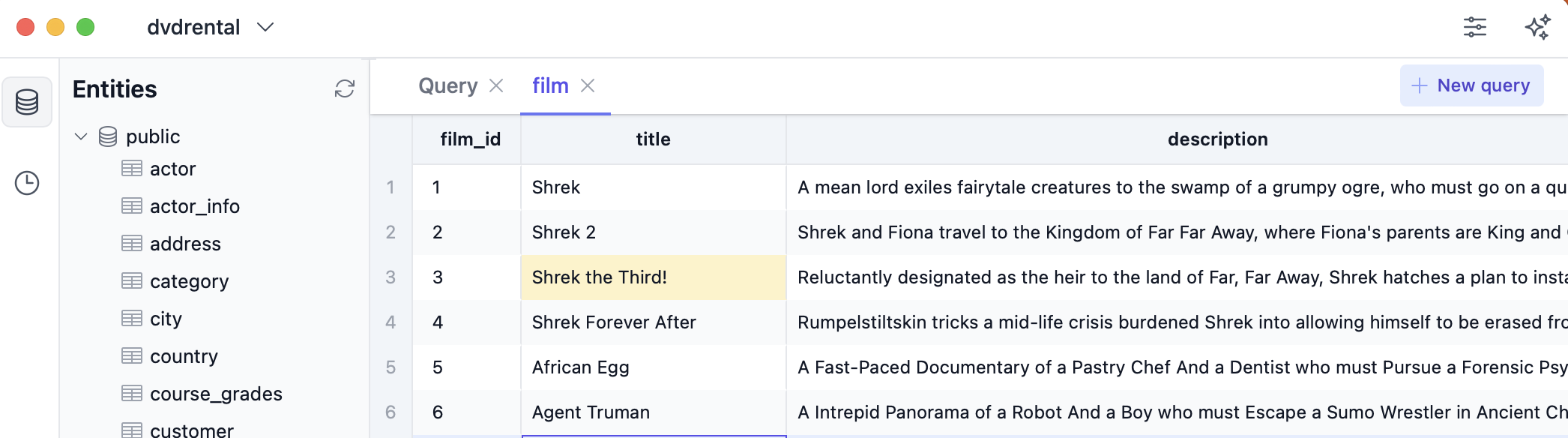
To update a column's value, double-click the column. This will reveal an input field where you can enter a new value:
## Update
To update a column's value, double-click the column. This will reveal an input field where you can enter a new value:
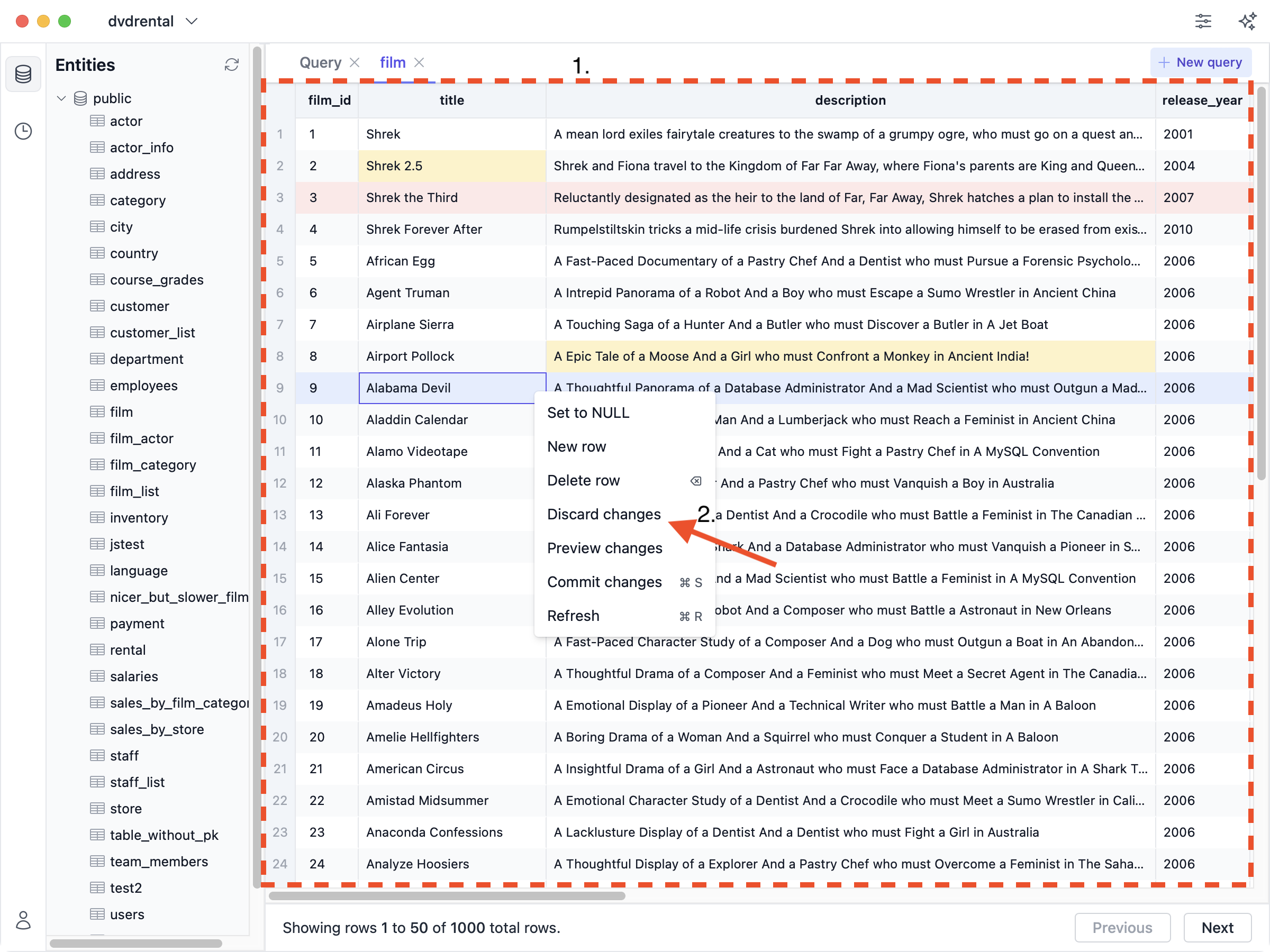
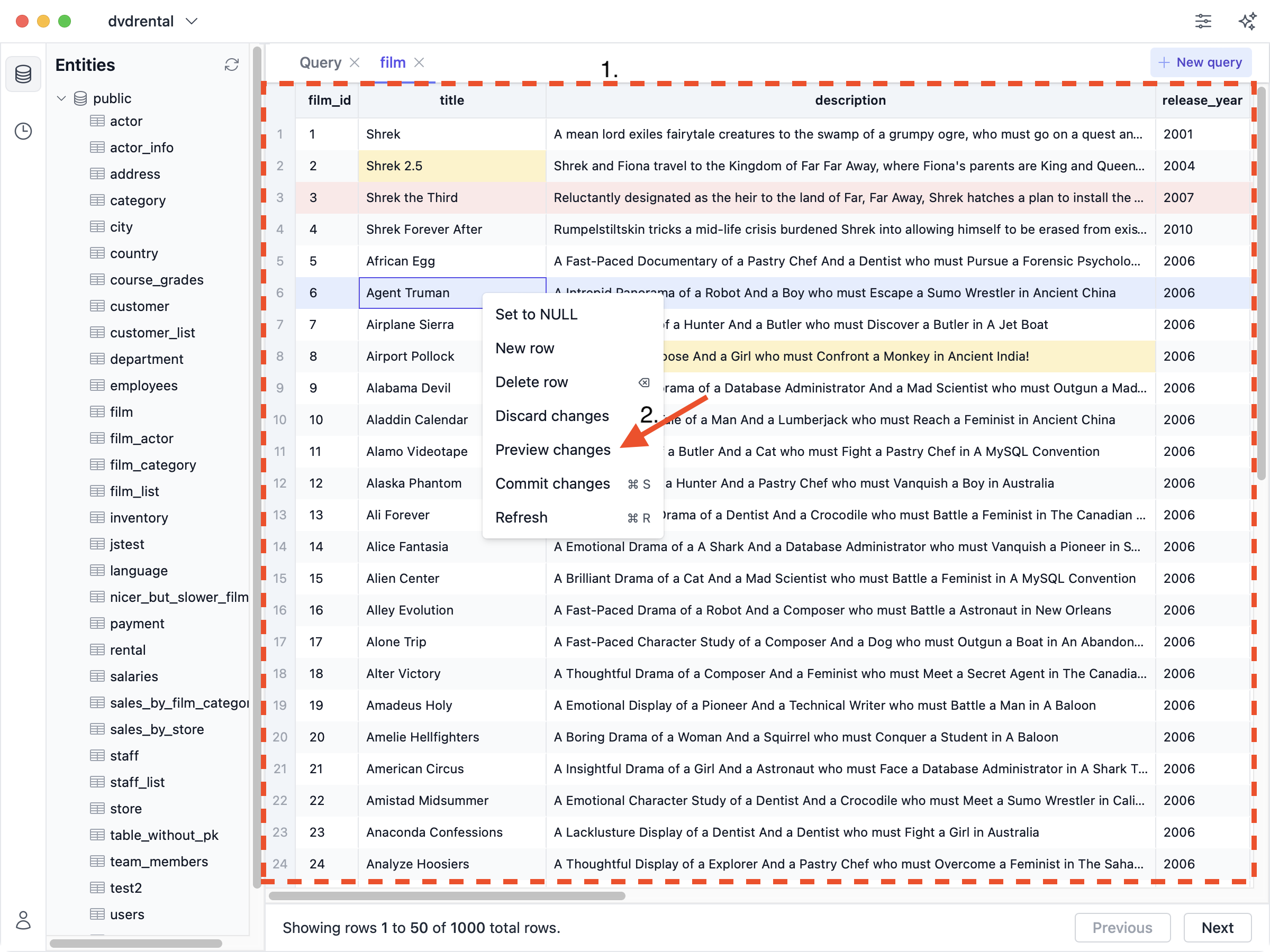
 Columns with uncommitted changes are highlighted in yellow:
 ## Delete
To mark a row for deletion:
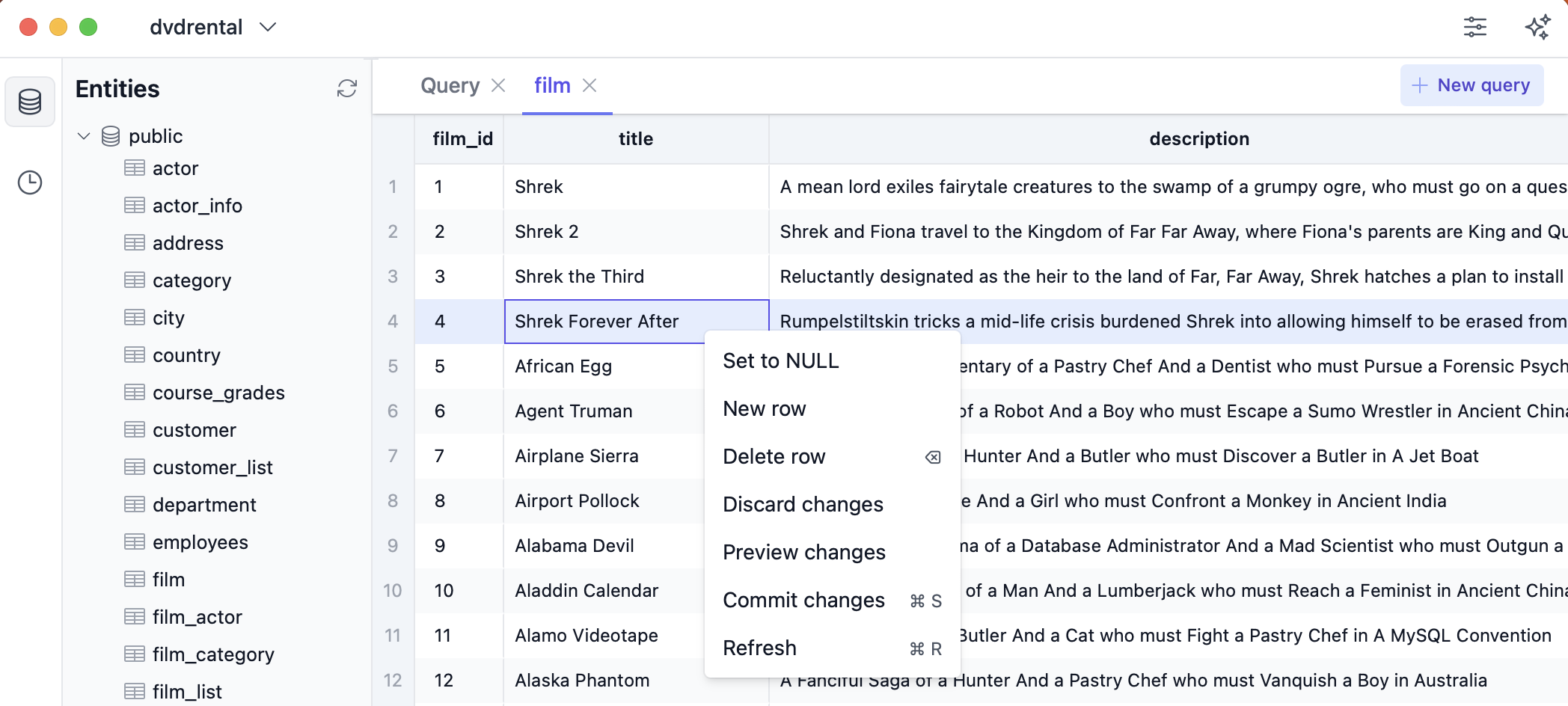
1. Right-click the row
2. Click the "Delete row" button
Alternatively, select a row by left-clicking it, then **use the ⌫ (backspace)** [shortcut](./keyboard-shortcuts).
## Delete
To mark a row for deletion:
1. Right-click the row
2. Click the "Delete row" button
Alternatively, select a row by left-clicking it, then **use the ⌫ (backspace)** [shortcut](./keyboard-shortcuts).
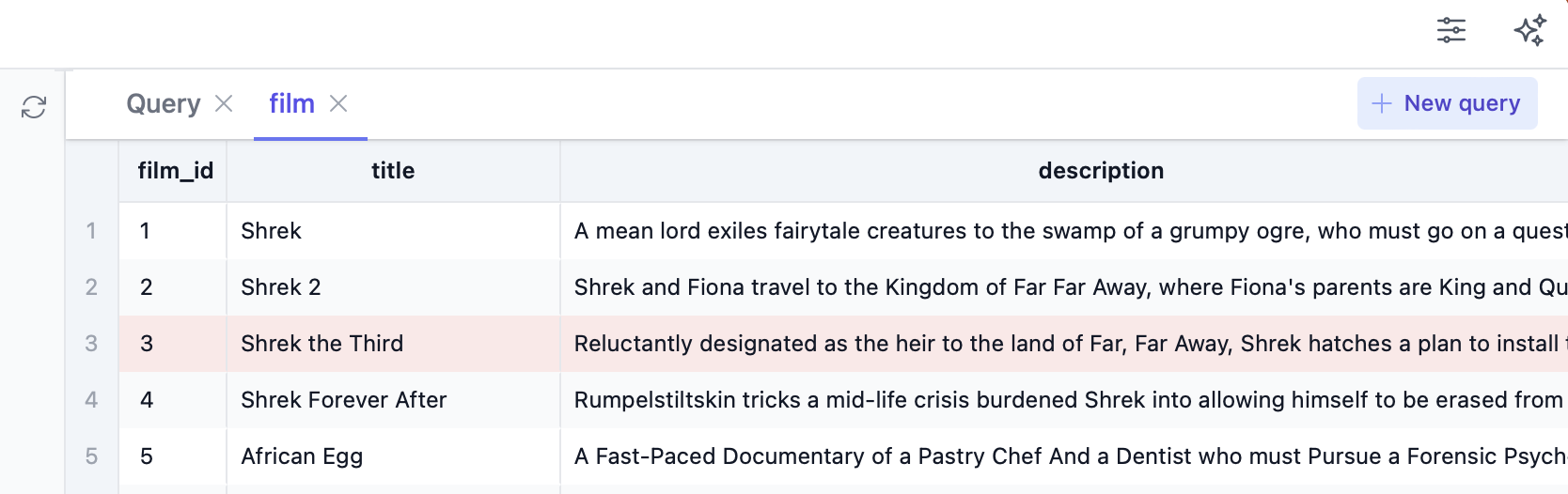
 Rows marked for deletion are highlighted in red while the change is not committed:
 ## Commit
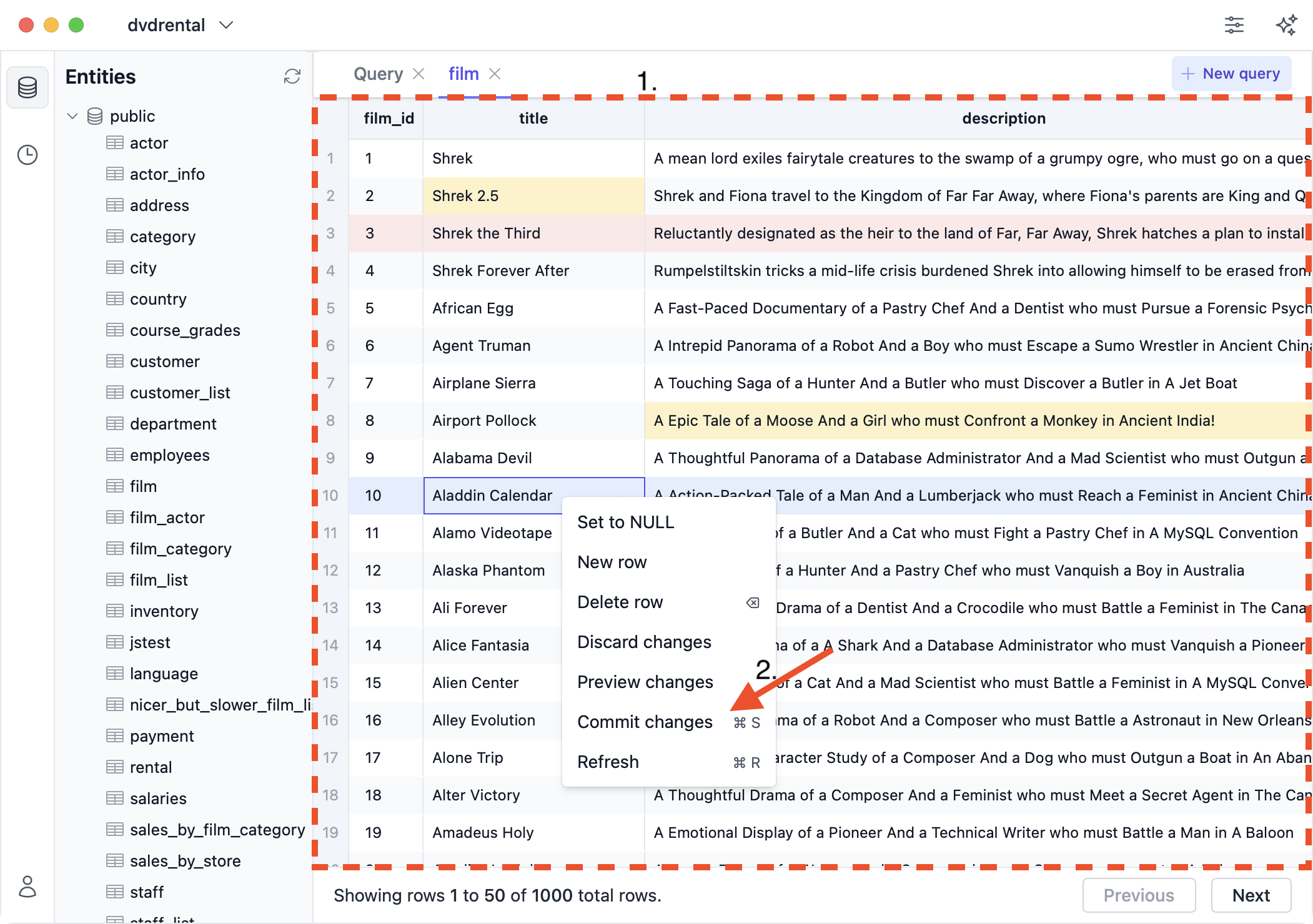
Inserts, updates, and deletions are not executed immediately. You have to explicitly commit them to the database. To do so, either **use the ⌘S shortcut** or:
1. Right-click anywhere in the table view
2. Click the "Commit" button
## Commit
Inserts, updates, and deletions are not executed immediately. You have to explicitly commit them to the database. To do so, either **use the ⌘S shortcut** or:
1. Right-click anywhere in the table view
2. Click the "Commit" button
 ## Preview changes
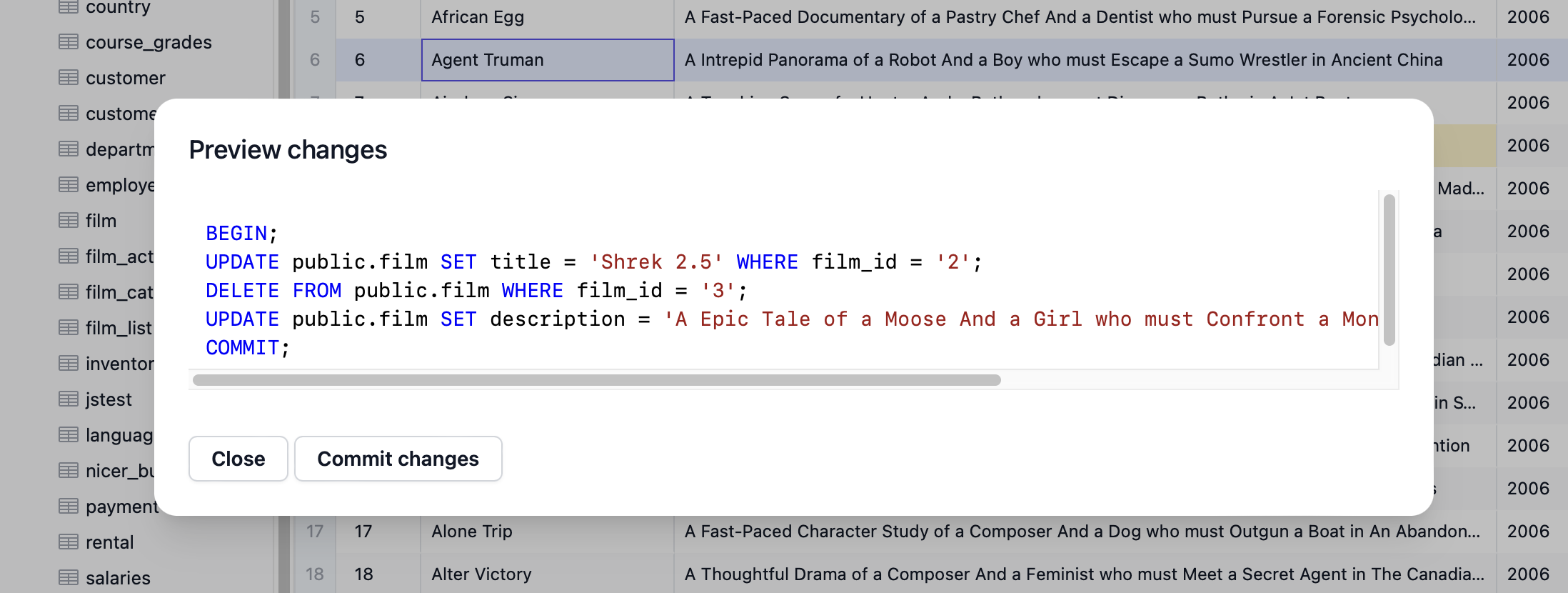
To preview the exact SQL statements that will be executed when you [commit changes](#commit):
1. Right-click anywhere in the table view
2. Click the "Preview changes" button
## Preview changes
To preview the exact SQL statements that will be executed when you [commit changes](#commit):
1. Right-click anywhere in the table view
2. Click the "Preview changes" button
 You will then see an overlay like this:
 ## Discard changes
To discard all uncommitted changes of the selected database connection:
1. Right-click anywhere in the table view
2. Click the "Discard changes" button
## Discard changes
To discard all uncommitted changes of the selected database connection:
1. Right-click anywhere in the table view
2. Click the "Discard changes" button