> ## Documentation Index
> Fetch the complete documentation index at: https://docs.dbpilot.io/llms.txt
> Use this file to discover all available pages before exploring further.
# Notebooks
Notebooks allow you to mix and match SQL, Python, inputs and interactive tables & charts to build dashboards and iteratively explore data.
## Example Use Cases
Below are some examples to give a quick overview of what you can do with notebooks.
### Iterative Data Transformation
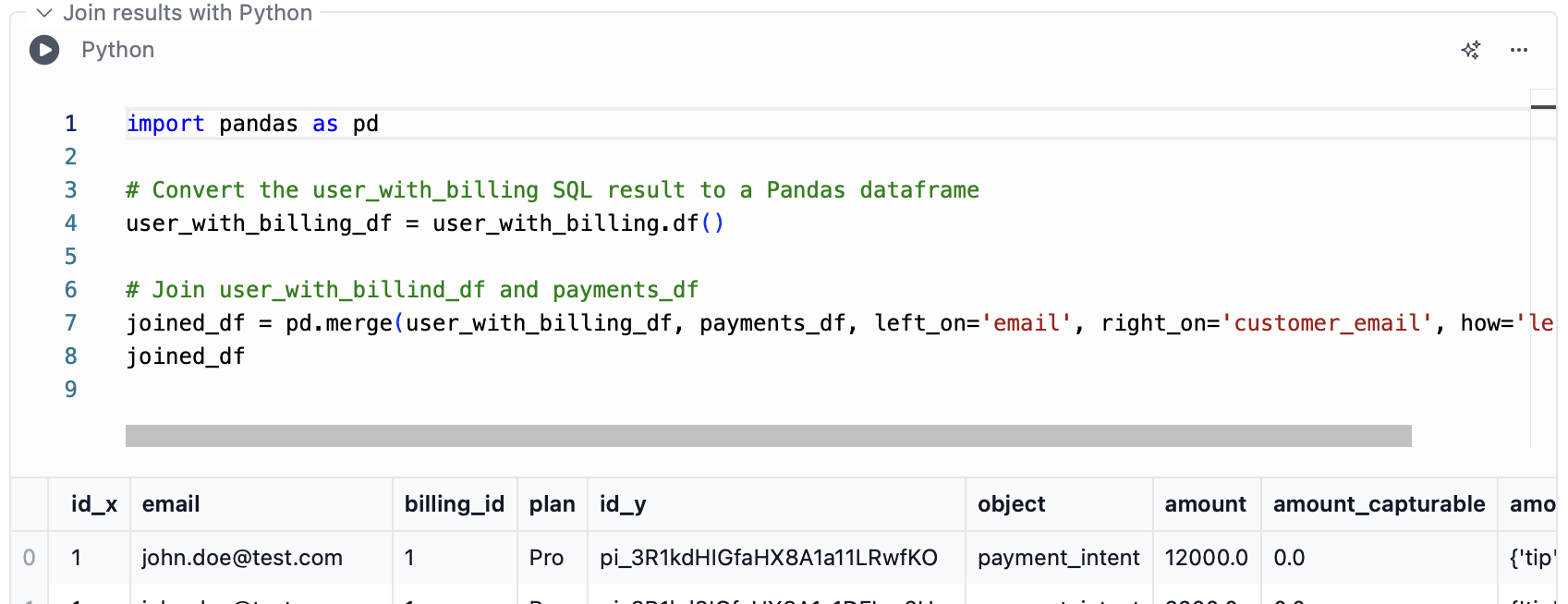
This example shows how to load and transform data iteratively, across multiple blocks, using both SQL and Python.
What we're doing here:
1. **Load some data with SQL**, store it in variable `user_with_billing`
2. **Load some more data with Python**, store it in dataframe variable `payments_df`
3. **Join those two datasets using SQL**. We're using the built-in "Notebook session database" here, where all query results and Python dataframes can be queries as views.
Instead of joining the datasets in SQL, it could also be done in Python. All SQL query results (i.e. `user_with_billing`) are also accessible in Python.
 ### Dashboard for Time Series Data
This example shows how you can use a date range filter and chart blocks to visualize time series data, like orders and renewals over time.
### User Dashboard
This example shows a dashboard that allows entering a user email and then shows relevant data for that user.
It also **allows editing** that data.
## Block Types
Notebooks support the following block types:
* [SQL](#sql)
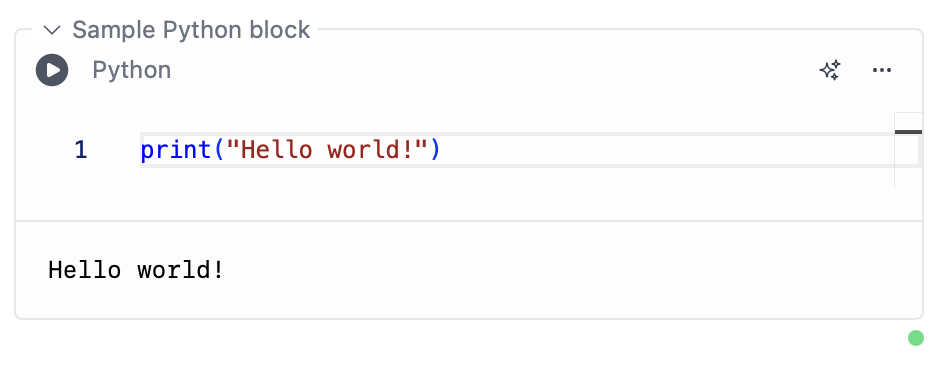
* [Python](#python)
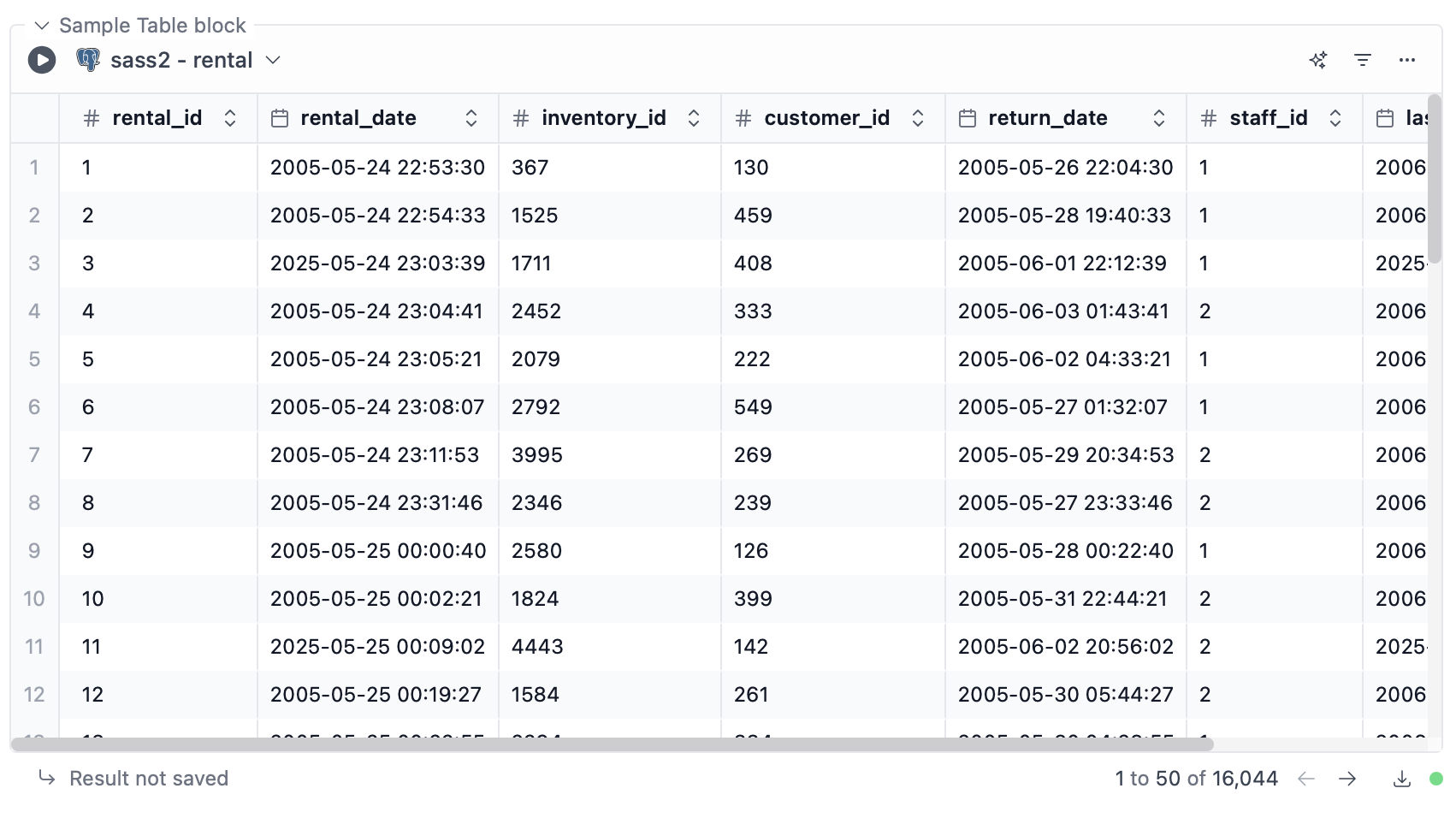
* [Table and chart](#table-and-chart)
* [Input](#input)
* [Text](#text)
### SQL
### Dashboard for Time Series Data
This example shows how you can use a date range filter and chart blocks to visualize time series data, like orders and renewals over time.
### User Dashboard
This example shows a dashboard that allows entering a user email and then shows relevant data for that user.
It also **allows editing** that data.
## Block Types
Notebooks support the following block types:
* [SQL](#sql)
* [Python](#python)
* [Table and chart](#table-and-chart)
* [Input](#input)
* [Text](#text)
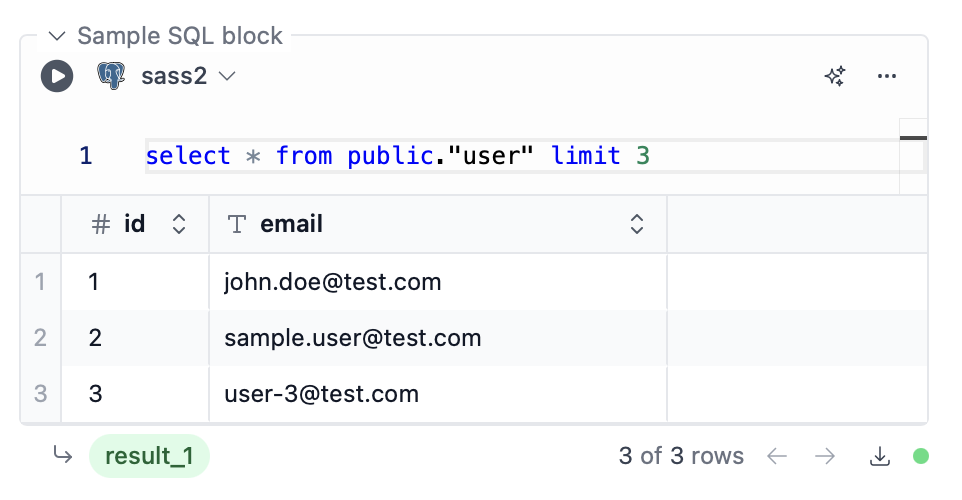
### SQL
 ### Python
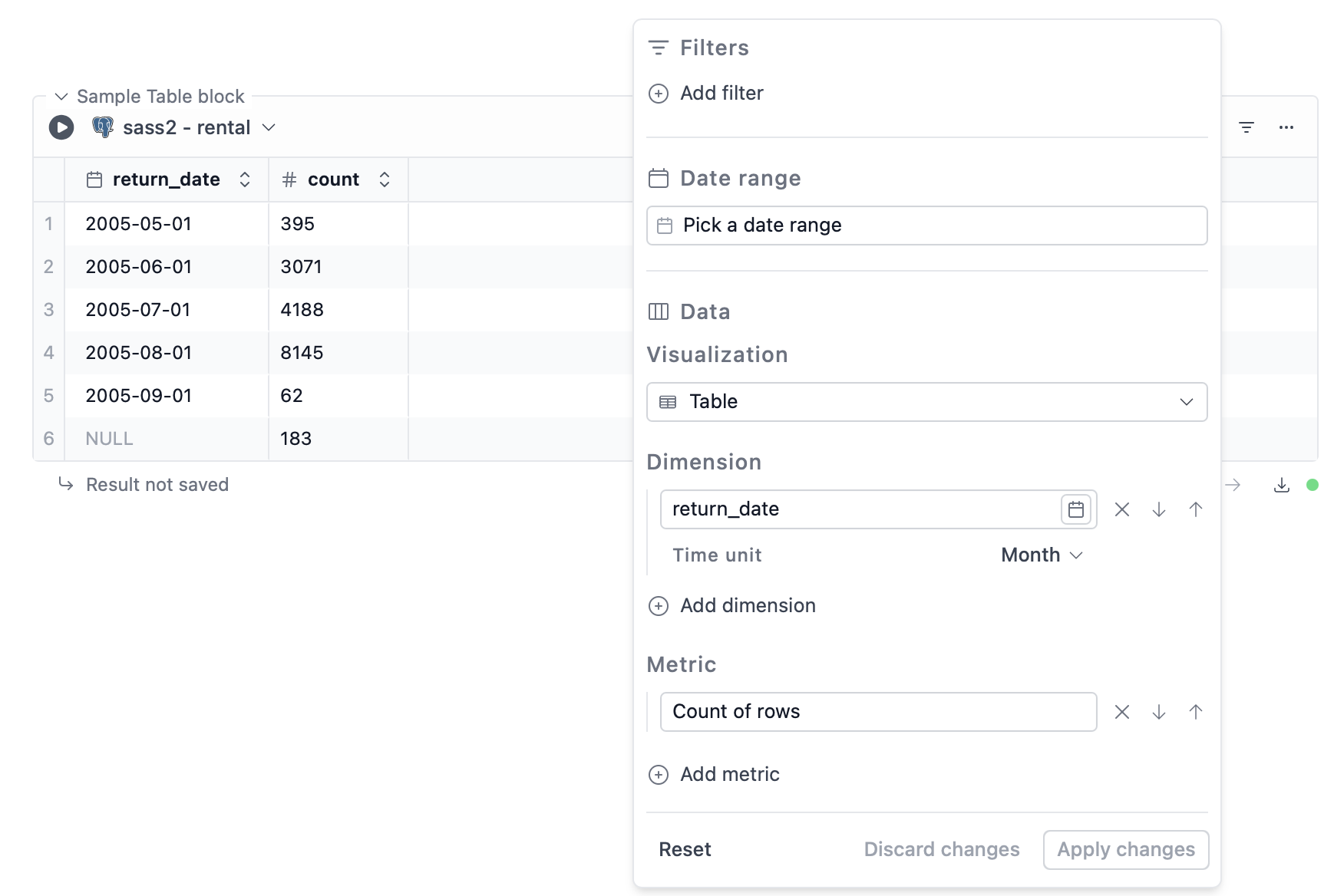
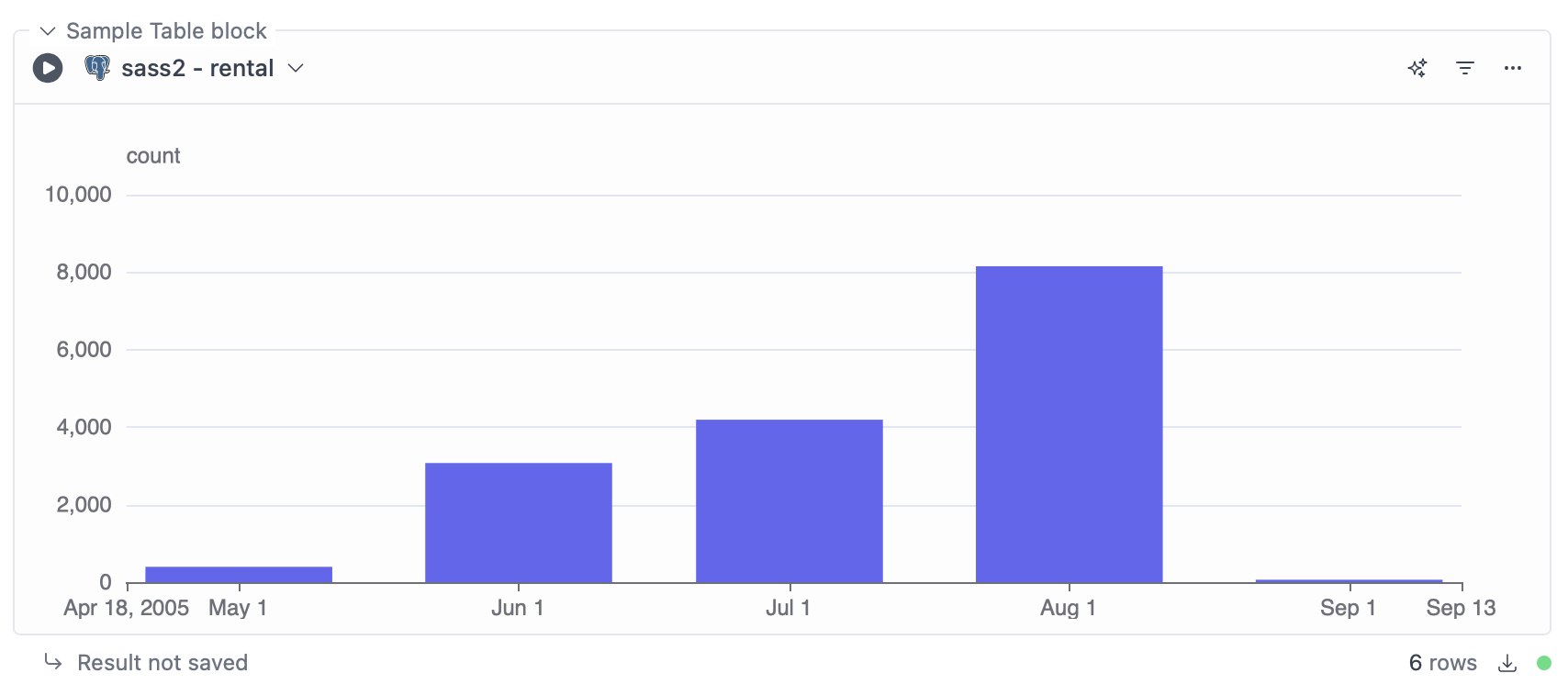
 ### Table/Chart
 ### Input
We currently support the following input block types:
* Text
* Date range
* Toggle
### Input
We currently support the following input block types:
* Text
* Date range
* Toggle
 #### How to use input block variables
Each input has a variable name. Using this name, the variable can be accessed in SQL, Python, and table/chart blocks.
**In Python:**
In Python, input variables are available as regular Python variables.
```python theme={null}
# Text and toggle inputs
print(input_variable)
# Date range input
print(input_variable['start'])
print(input_variable['end'])
```
**In SQL:**
In SQL, input variables (and all Python variables) can be accessed using Jinja templating ([see more below](#jinja-filters-for-sql-blocks)).
```sql theme={null}
-- Text and toggle inputs
SELECT * FROM users WHERE email = {{ input_variable }}
-- Date range input
SELECT * FROM users WHERE created_at BETWEEN {{ input_variable['start'] }} AND {{ input_variable['end'] }}
```
**In table/chart blocks:**
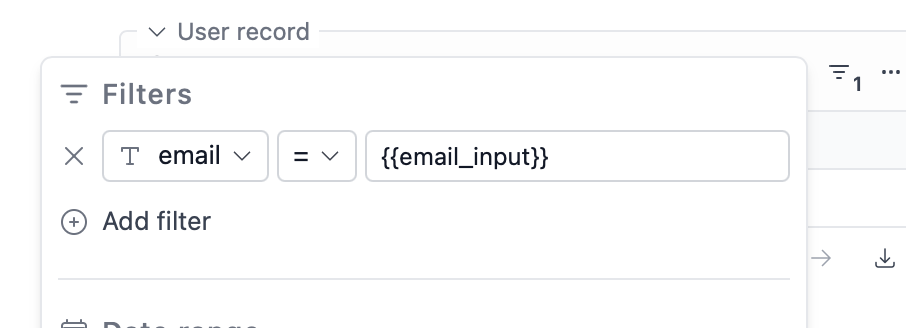
In table/chart blocks, input variables (and all Python variables) can be accessed in filters using Jinja templating.
#### How to use input block variables
Each input has a variable name. Using this name, the variable can be accessed in SQL, Python, and table/chart blocks.
**In Python:**
In Python, input variables are available as regular Python variables.
```python theme={null}
# Text and toggle inputs
print(input_variable)
# Date range input
print(input_variable['start'])
print(input_variable['end'])
```
**In SQL:**
In SQL, input variables (and all Python variables) can be accessed using Jinja templating ([see more below](#jinja-filters-for-sql-blocks)).
```sql theme={null}
-- Text and toggle inputs
SELECT * FROM users WHERE email = {{ input_variable }}
-- Date range input
SELECT * FROM users WHERE created_at BETWEEN {{ input_variable['start'] }} AND {{ input_variable['end'] }}
```
**In table/chart blocks:**
In table/chart blocks, input variables (and all Python variables) can be accessed in filters using Jinja templating.
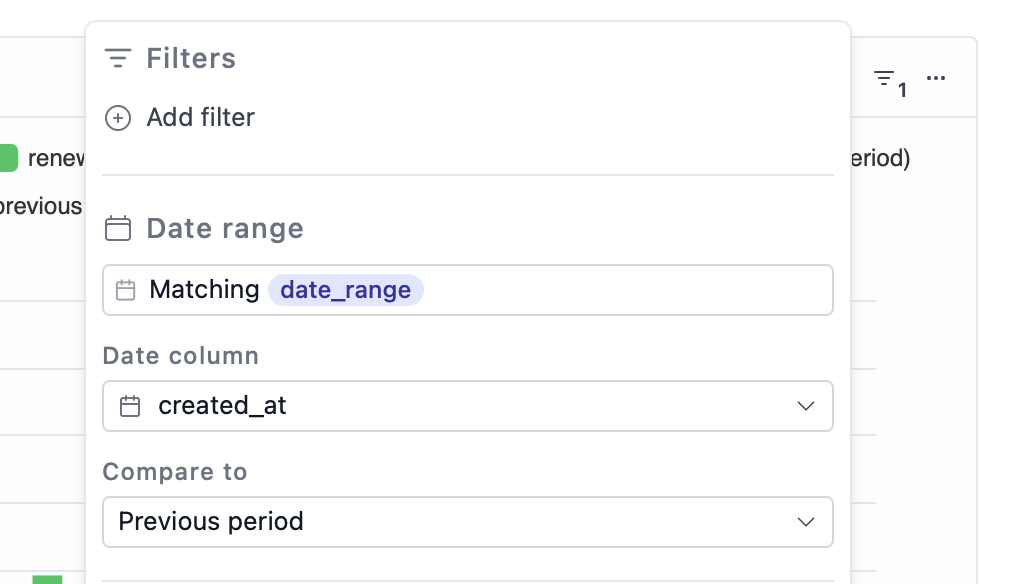
 For date range filters, you can also directly select a matching date range input through the UI:
 ### Text
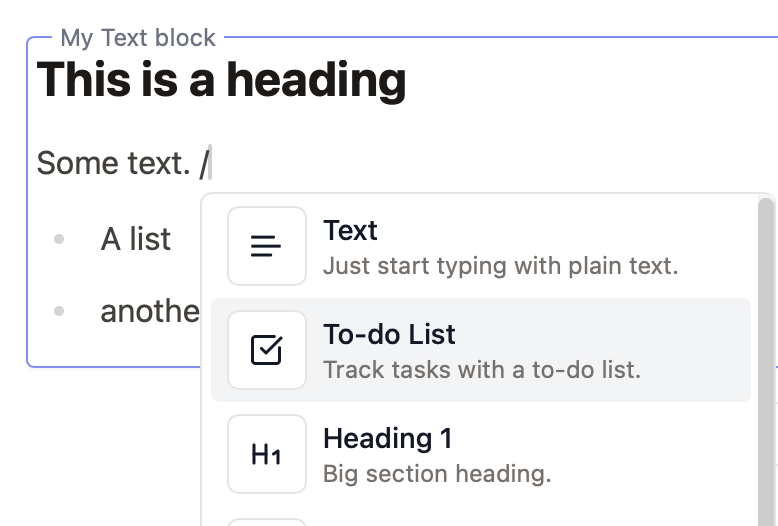 Inside of text blocks, you can type `/` to open a menu with formatting options. You can also use Markdown syntax, e.g. type `##` to create a H2 heading.
## Query Results
SQL blocks and table/chart blocks produce query results, which can be accessed in other blocks under the given variable name.
SQL blocks always produce a stored result, as long as the query returns any data.
For table/chart blocks, the result is only stored and accessible to other blocks if the table/chart block is configured to do so.
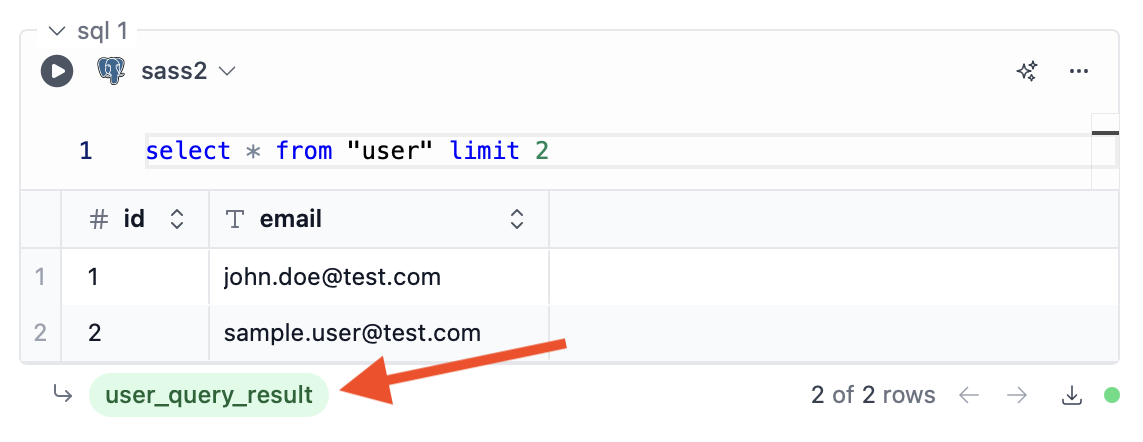
The variable name of the block can be configured using the input at the bottom of the block. Here for example we've set it to `user_query_result`:
Inside of text blocks, you can type `/` to open a menu with formatting options. You can also use Markdown syntax, e.g. type `##` to create a H2 heading.
## Query Results
SQL blocks and table/chart blocks produce query results, which can be accessed in other blocks under the given variable name.
SQL blocks always produce a stored result, as long as the query returns any data.
For table/chart blocks, the result is only stored and accessible to other blocks if the table/chart block is configured to do so.
The variable name of the block can be configured using the input at the bottom of the block. Here for example we've set it to `user_query_result`:
 ### Access Query Results in Python
Query results in Python are thin wrappers around DuckDB's `DuckDBPyRelation` class, so you can use any of [its methods](https://duckdb.org/docs/stable/clients/python/reference/#duckdb.DuckDBPyRelation) to fetch or further process the query result data.
Here are some examples:
```python theme={null}
user_query_result.fetchall() # All rows as a list of tuples of Python objects
user_query_result.fetchone() # First row as a single tuple of Python objects
user_query_result.df() # As Pandas DataFrame
user_query_result.pl() # As Polars DataFrame (requires `%pip install polars pyarrow`)
user_query_result.filter("id > 10").limit(5).df() # Filter and limit, then fetch as Pandas DataFrame
```
### Access Query Results in SQL
#### As a view in the Notebook session database
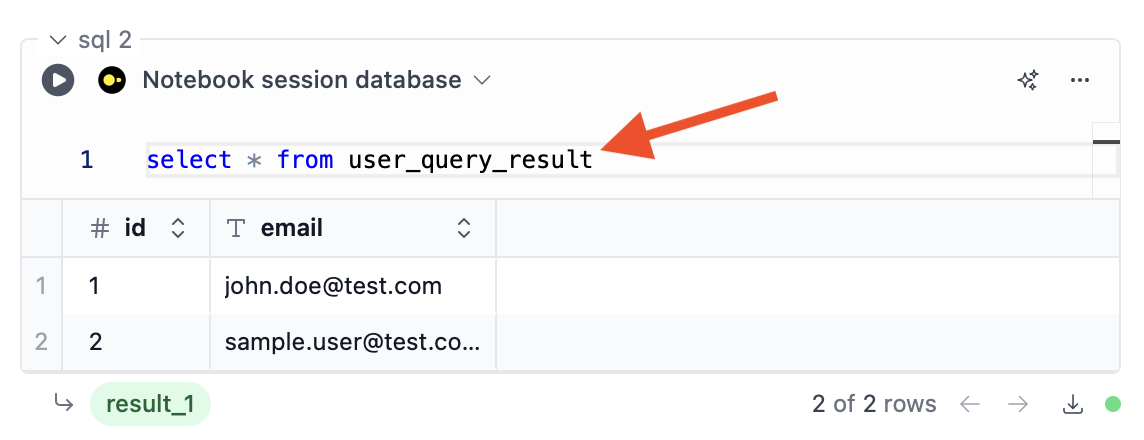
Query results are made available as a view in the "Notebook session database", so you can
query it like any other view or table in that database:
### Access Query Results in Python
Query results in Python are thin wrappers around DuckDB's `DuckDBPyRelation` class, so you can use any of [its methods](https://duckdb.org/docs/stable/clients/python/reference/#duckdb.DuckDBPyRelation) to fetch or further process the query result data.
Here are some examples:
```python theme={null}
user_query_result.fetchall() # All rows as a list of tuples of Python objects
user_query_result.fetchone() # First row as a single tuple of Python objects
user_query_result.df() # As Pandas DataFrame
user_query_result.pl() # As Polars DataFrame (requires `%pip install polars pyarrow`)
user_query_result.filter("id > 10").limit(5).df() # Filter and limit, then fetch as Pandas DataFrame
```
### Access Query Results in SQL
#### As a view in the Notebook session database
Query results are made available as a view in the "Notebook session database", so you can
query it like any other view or table in that database:
 That's useful for example if you want to further process the data from your database locally,
or join it with other data from outside your database.
#### Using Jinja
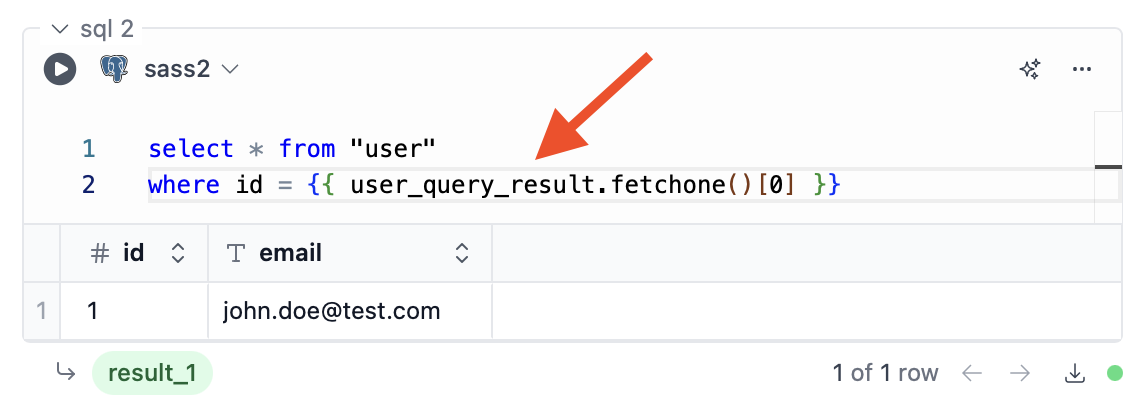
You can also use the query result in a Jinja template. This can be used with any database connection,
not just the notebook's session database.
In this example, we're using the first column of the first row in the where clause:
That's useful for example if you want to further process the data from your database locally,
or join it with other data from outside your database.
#### Using Jinja
You can also use the query result in a Jinja template. This can be used with any database connection,
not just the notebook's session database.
In this example, we're using the first column of the first row in the where clause:
 ### Access Query Results in Table/Chart Blocks
In table/chart blocks, you can use the query result as the data source, just like any regular table.
### Access Query Results in Table/Chart Blocks
In table/chart blocks, you can use the query result as the data source, just like any regular table.
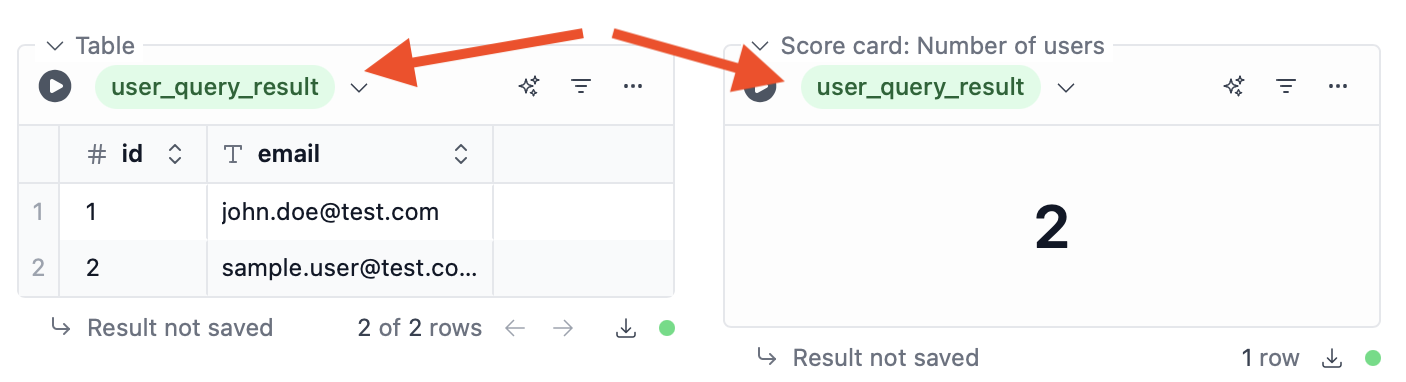 Again, you can also use Jinja to access just one cell of a query result, so that you can use it in a filter:
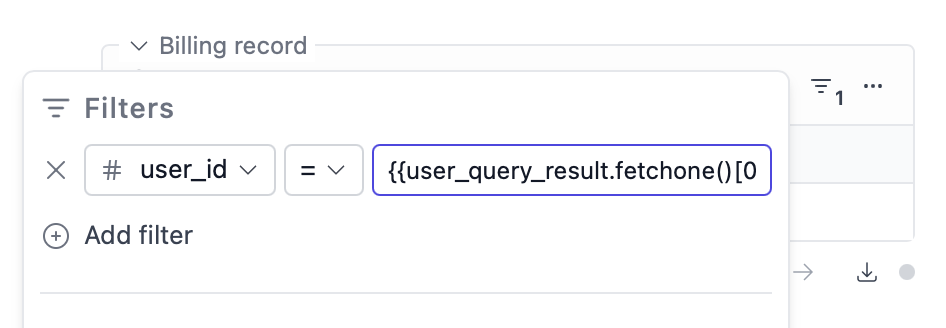 (The full expression here is `{{user_query_result.fetchone()[0]}}`)
## Python
### Supported Python versions
The following Python versions are supported:
* 3.10
* 3.11
* 3.12
* 3.13
### Managing Python Interpreters
You can select a Python interpreter per notebook at the top right of the notebook:
(The full expression here is `{{user_query_result.fetchone()[0]}}`)
## Python
### Supported Python versions
The following Python versions are supported:
* 3.10
* 3.11
* 3.12
* 3.13
### Managing Python Interpreters
You can select a Python interpreter per notebook at the top right of the notebook:
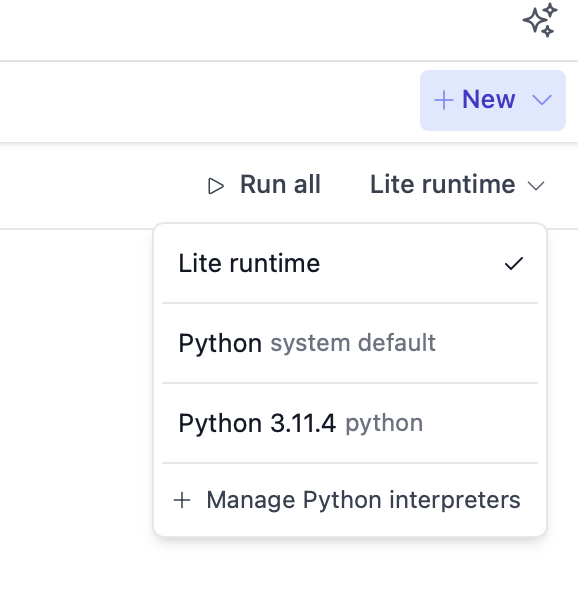 To add a new interpreter, click the "Manage Python interpreters" button.
There you'll be able to specify the path to the Python executable that you want to use.
To use a virtual environment, specify the path to the python executable inside the virtual environment, e.g.
`/Users/your-name/some-path/venv/bin/python`.
### Installing Dependencies
To install pip packages, use the `%pip` command in a Python block.
For example:
```python theme={null}
%pip install openai
```
## DataFrames
Python DataFrames, both Pandas and Polars, can be accessed in SQL blocks and table/chart blocks.
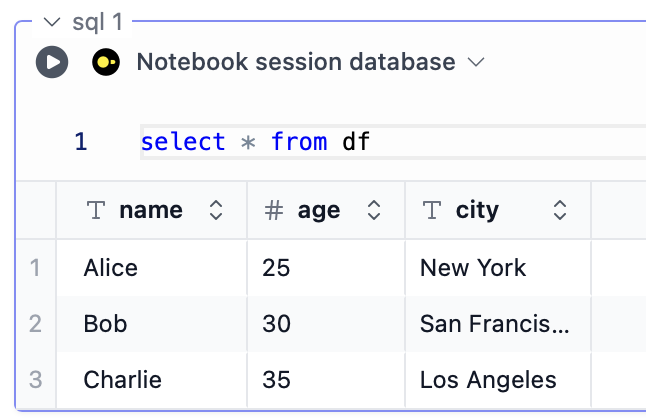
Let's say we have a Pandas DataFrame stored in the variable `df`:
```python theme={null}
import pandas as pd
data = {
'name': ['Alice', 'Bob', 'Charlie'],
'age': [25, 30, 35],
'city': ['New York', 'San Francisco', 'Los Angeles']
}
df = pd.DataFrame(data)
```
It can be selected as a data source in a table/chart block:
To add a new interpreter, click the "Manage Python interpreters" button.
There you'll be able to specify the path to the Python executable that you want to use.
To use a virtual environment, specify the path to the python executable inside the virtual environment, e.g.
`/Users/your-name/some-path/venv/bin/python`.
### Installing Dependencies
To install pip packages, use the `%pip` command in a Python block.
For example:
```python theme={null}
%pip install openai
```
## DataFrames
Python DataFrames, both Pandas and Polars, can be accessed in SQL blocks and table/chart blocks.
Let's say we have a Pandas DataFrame stored in the variable `df`:
```python theme={null}
import pandas as pd
data = {
'name': ['Alice', 'Bob', 'Charlie'],
'age': [25, 30, 35],
'city': ['New York', 'San Francisco', 'Los Angeles']
}
df = pd.DataFrame(data)
```
It can be selected as a data source in a table/chart block:
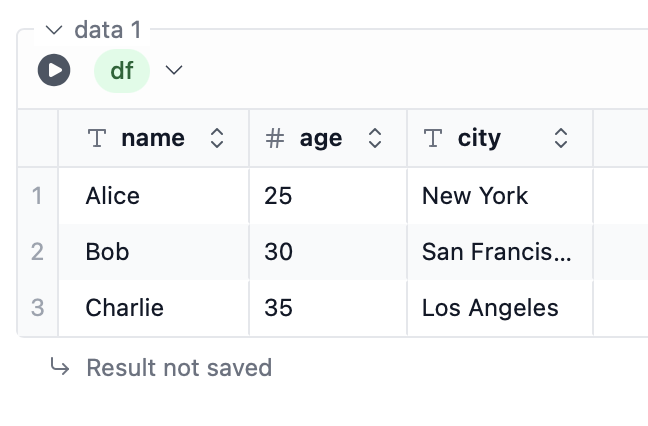 And in SQL, you can access it as a view in the notebook's session database, e.g. `select * from df`:
 Or in Jinja expressions. This can be used in SQL blocks with any database and filter values of table/chart blocks, for example:
```sql theme={null}
SELECT {{ df.iloc[0]['age'] }} as age
```
### Polars
To use Polars, you'll need to install the `polars` and `pyarrow` packages manually. To do so, run the following command in a Python block:
```python theme={null}
%pip install polars pyarrow
```
## Environment Variables
You can configure environment variables, e.g. to store secrets. All variables are stored securely in your device's keychain.
To edit environment variables, click the menu button in the top left corner of the notebook:
Or in Jinja expressions. This can be used in SQL blocks with any database and filter values of table/chart blocks, for example:
```sql theme={null}
SELECT {{ df.iloc[0]['age'] }} as age
```
### Polars
To use Polars, you'll need to install the `polars` and `pyarrow` packages manually. To do so, run the following command in a Python block:
```python theme={null}
%pip install polars pyarrow
```
## Environment Variables
You can configure environment variables, e.g. to store secrets. All variables are stored securely in your device's keychain.
To edit environment variables, click the menu button in the top left corner of the notebook:
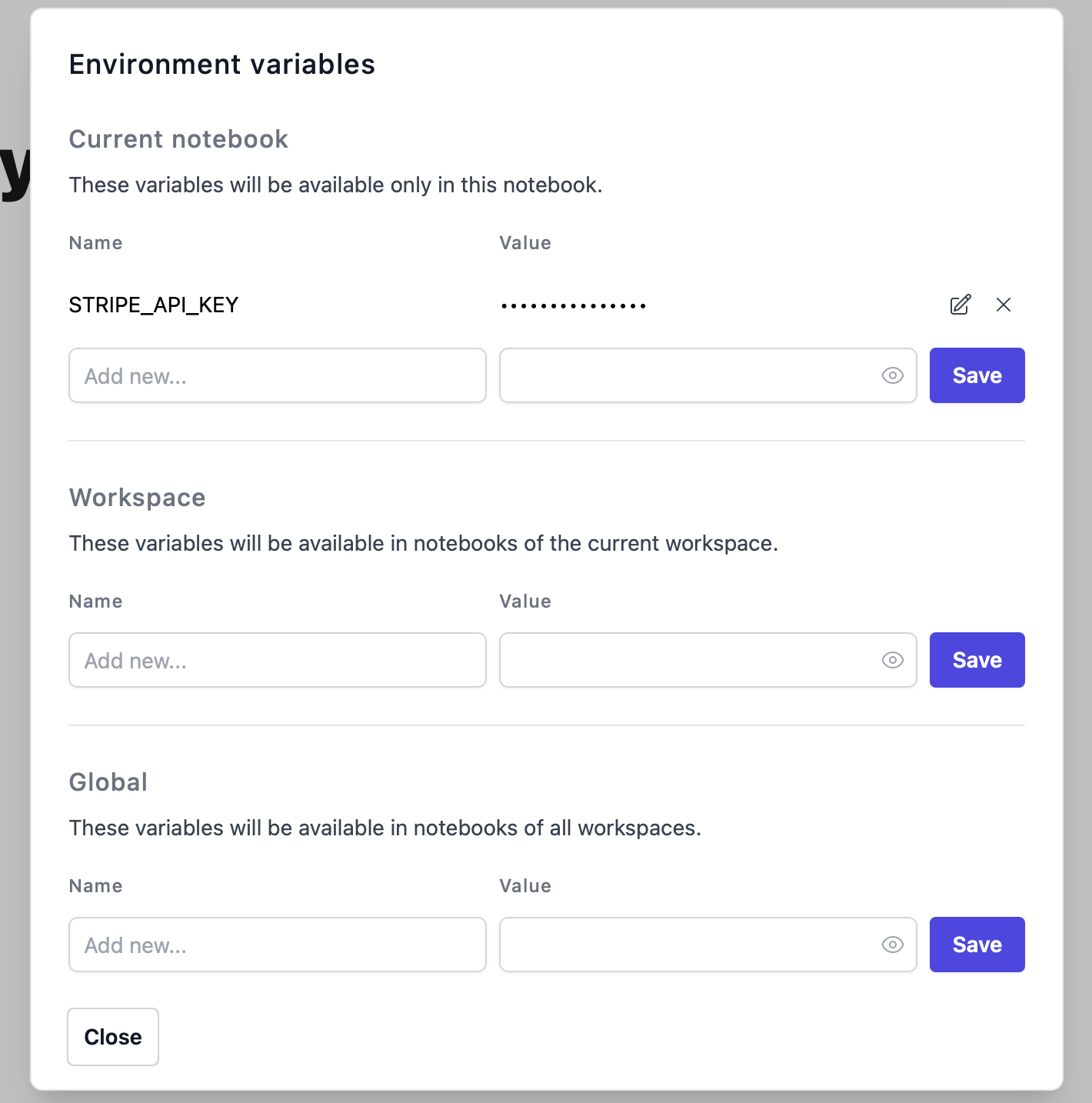
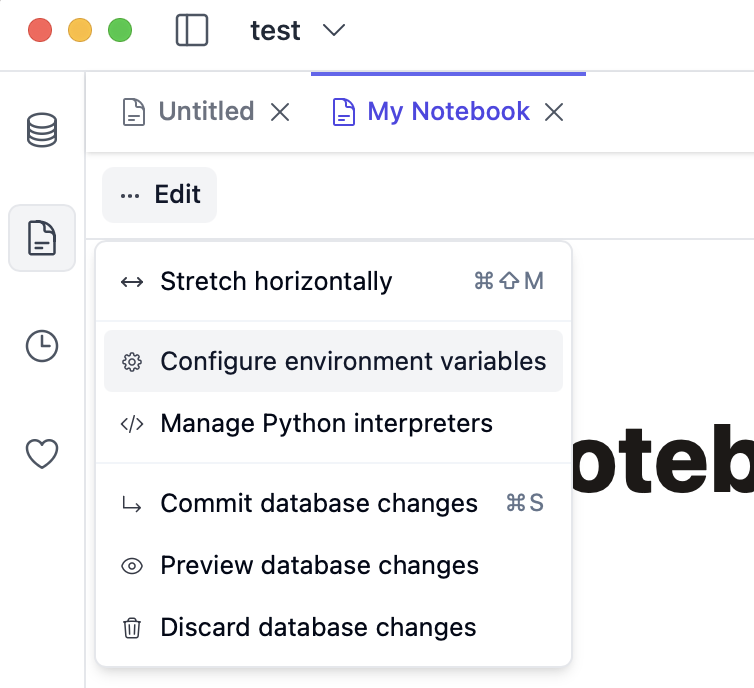 Then you can edit the variables. You can choose between setting them only for the current notebook, for all notebooks in the current workspace, or for all workspaces.
 ### Using environment variables in Python blocks
Environment variables can be accessed using `os.environ`. For example:
```python theme={null}
import os
print(os.environ['STRIPE_API_KEY'])
```
### Using environment variables in SQL and table/chart blocks
Environment variables can be accessed using Jinja templating in SQL blocks and in filter values of table/chart blocks. For example in a SQL block:
```sql theme={null}
SELECT * FROM users WHERE created_at > {{ os.environ['MY_VARIABLE'] }}
```
## Jinja Filters for SQL Blocks
You can use Jinja in SQL blocks to parameterize your queries.
### Binding variables
By default, if you don't specify any Jinja filter, the variable will be bound as a query parameter.
```sql theme={null}
SELECT * FROM some_table where id = {{ my_var }}
```
You can also explicitly use the `bind` filter if you prefer, which is equivalent to not specifying any filter:
```sql theme={null}
SELECT * FROM some_table where id = {{ my_var | bind }}
```
### Binding to IN clauses
You can bind Python lists to IN clauses using the `inclause` filter:
```sql theme={null}
-- e.g. my_list = [1, 2, 3]
SELECT * FROM some_table WHERE id IN {{ my_list | inclause }}
```
### Binding to VALUES clauses
You can bind lists of lists to VALUES clauses using the `values` filter:
```sql theme={null}
-- e.g. my_list_of_lists = [[1, 2], [4, 5]]
INSERT INTO some_table (col1, col2) VALUES {{ my_list_of_lists | values }}
```
### Parameterizing identifiers
To parameterize identifiers like table names, use the `identifier` filter:
```sql theme={null}
-- e.g. my_table = "users"
SELECT * FROM {{ my_table | identifier }}
```
### Using environment variables in Python blocks
Environment variables can be accessed using `os.environ`. For example:
```python theme={null}
import os
print(os.environ['STRIPE_API_KEY'])
```
### Using environment variables in SQL and table/chart blocks
Environment variables can be accessed using Jinja templating in SQL blocks and in filter values of table/chart blocks. For example in a SQL block:
```sql theme={null}
SELECT * FROM users WHERE created_at > {{ os.environ['MY_VARIABLE'] }}
```
## Jinja Filters for SQL Blocks
You can use Jinja in SQL blocks to parameterize your queries.
### Binding variables
By default, if you don't specify any Jinja filter, the variable will be bound as a query parameter.
```sql theme={null}
SELECT * FROM some_table where id = {{ my_var }}
```
You can also explicitly use the `bind` filter if you prefer, which is equivalent to not specifying any filter:
```sql theme={null}
SELECT * FROM some_table where id = {{ my_var | bind }}
```
### Binding to IN clauses
You can bind Python lists to IN clauses using the `inclause` filter:
```sql theme={null}
-- e.g. my_list = [1, 2, 3]
SELECT * FROM some_table WHERE id IN {{ my_list | inclause }}
```
### Binding to VALUES clauses
You can bind lists of lists to VALUES clauses using the `values` filter:
```sql theme={null}
-- e.g. my_list_of_lists = [[1, 2], [4, 5]]
INSERT INTO some_table (col1, col2) VALUES {{ my_list_of_lists | values }}
```
### Parameterizing identifiers
To parameterize identifiers like table names, use the `identifier` filter:
```sql theme={null}
-- e.g. my_table = "users"
SELECT * FROM {{ my_table | identifier }}
```